Video
From ProThe aftermovie, right in the gallery.
Upload the film with the photographs. Your original is kept, clients watch in the best quality their connection takes, and download the original when you allow it.
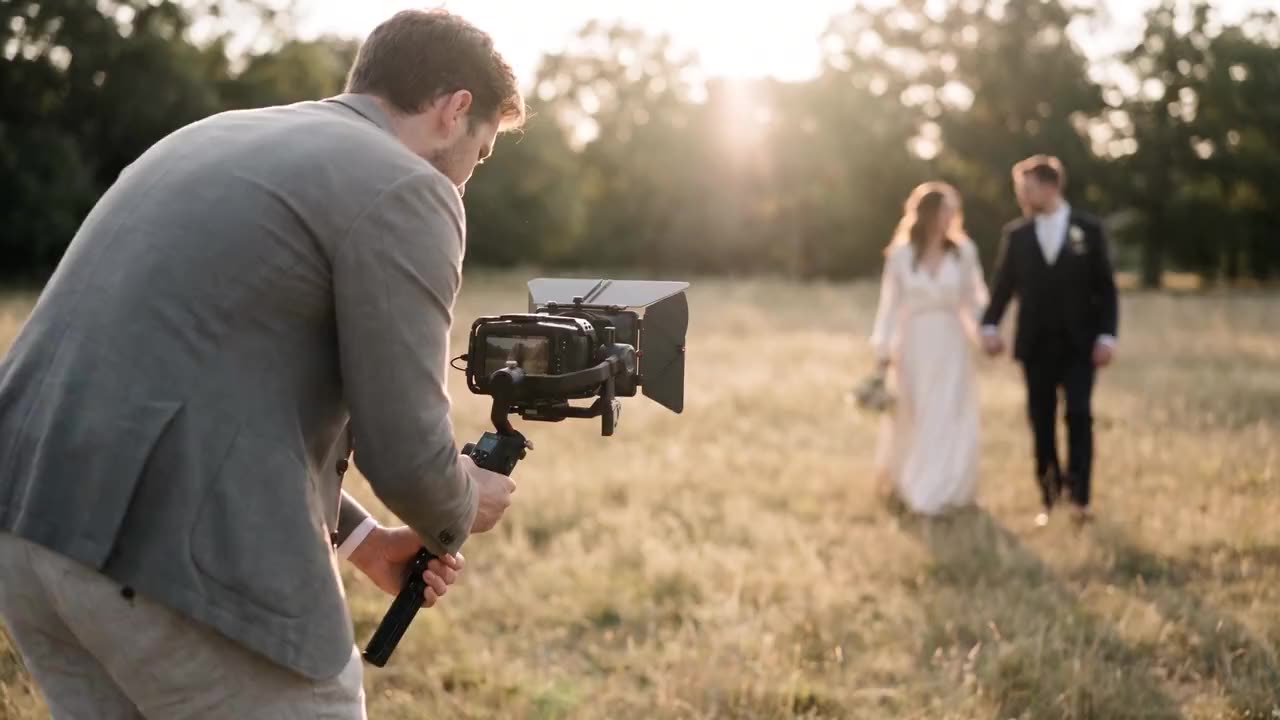
What it looks like




How it works
01 ▸
Add the film
Open the gallery, go to the Video tab and press “Add video”. MP4 or MOV works best, up to 30 GB a file. Keep the tab open until the upload is done.
02 ▸
The versions are made
Your original is kept with the gallery and counts towards your storage. Versions in several qualities are made for playing, which takes about as long as the film.
03 ▸
Set it up
Give it a title, choose the first frame, add chapters, and switch on “Feedback from clients” or “Ask for approval” where you want them.
04 ▸
Publish
The film sits above the photographs. A gallery with only a film can go out too, opening on the film's first frame or a cover of your own.
05 ▸
Your client reacts
Your client presses “Feedback”, pauses and types a note, or presses “Approve”. You hear about it, and answer notes and tick them off in the Video tab.
What is in it
- Feedback to the second: your client pauses, types what should change, and you see exactly where
- Notes answered and ticked off in your dashboard, switched on per video
- Downloads through the gallery, with the same PIN and rules as your photographs, up to 30 GB per film
- Portrait, square or wide, smooth from a phone to a television
- Video in your galleries at a time: 30 minutes on Pro, 120 on Studio, 300 on Agency; watching counts apart
In DaVinci Resolve
Your client's notes can go straight onto your timeline, as markers at their second: blue while they are open, green once they are done, with the answers in the marker's note.


- 01
DaVinci Resolve Studio: by themselves
With the Shyreo plug-in (Workspace, Scripts, Shyreo) you choose once which video goes with the timeline, and the notes come in as markers. While its window is open, the plug-in looks again every two minutes: new notes appear, finished ones turn green, deleted ones go, and markers of your own stay as they are. It is under Plug-ins.
- 02
The free version: a file per update
Since version 19.1 the free DaVinci Resolve no longer lets scripts open a window, so the plug-in cannot stay open there to keep up. In the video's feedback in your dashboard, download “Markers for DaVinci Resolve” and import it with Timelines, Import, Timeline Markers from EDL. For an update, download and import it again.
- 03
On the right frame
The plug-in reads the timeline's frame rate and start itself. For the file you choose them once: your timeline's frame rate, drop frame included, and where it starts, 01:00:00:00 unless you changed it.
The plug-in
For DaVinci Resolve Studio, on Mac and Windows: one file, Shyreo.lua, with a read-me that says where it goes.
In Premiere Pro
The same notes go onto your sequence in Premiere Pro, as markers at their second: blue while they are open, green once they are done, with the answers in the marker's comments.
- 01
A panel that keeps up
In the Shyreo panel (Window, UXP Plugins, Shyreo) you choose once which video goes with the sequence, and the notes come in as markers. While the panel is open, it looks again every two minutes: new notes appear, finished ones turn green, deleted ones go, and markers of your own stay as they are.
- 02
Installed with a double-click
For Premiere Pro 25.6 or later, on a Mac or a PC. Double-click the file while Premiere is closed, and Creative Cloud installs it. It is under Plug-ins.
- 03
On the right frame
The panel reads the sequence's frame rate itself and counts from the start of the sequence, so the film should start where the sequence starts. A note on a frame that has a marker already goes on the next free one.
The plug-in
For Premiere Pro 25.6 or later, on Mac and Windows: one file, shyreo-premiere.ccx, that Creative Cloud installs with a double-click.
Versions and approval
Upload a new version and it takes the old one's place, with its title, settings and chapters. Your client approves what is there, and you hear about it straight away.
- Earlier versions stay in the history, with their notes and approval, without costing minutes or storage
- Approval under their own name, once per version, switched on per video
- Chapters, one a line (“2:14 Ceremony”), under the video to jump to
- Choose the first frame: what your client sees before the film starts
What your client sees
- One film large in the gallery; several as a row, each opening in a player
- “Download” under the film when the gallery's downloads are set to “High resolution” or “Original files”
- Under “Feedback”, every note as a dot on the line under the film and in a list, with your answer under it
Minutes of watching
Apart from the minutes of video in your galleries, a plan has minutes of watching a month. Opening a gallery does not count.
- Pro 5,000 minutes a month, Studio 15,000, Agency 30,000
- Extra: 10,000 minutes for €14.95 under Billing, paid once and kept until used
- Past that, the films play on for another half of your monthly minutes, then stop until next month or until you buy extra. They stay in the gallery, and downloading still works
- A mail when a fifth is left, when they run out and when the films stop
Questions
Can my client download the film?
Yes, when the gallery's downloads are set to “High resolution” or “Original files”: your original file, after an email address or PIN if the gallery asks for one. With “Web resolution” the film is for watching only.
Is the film protected like the photographs?
It sits behind the same door as the gallery, and only plays through a signed link that runs out within twelve hours, so a copied player address stops working.
What happens to my films on a smaller plan?
They stay and keep playing, with 1,000 minutes of watching a month on the plans without video. You can still edit and remove them; adding video needs Pro or up.
Can my client's feedback go into DaVinci Resolve?
Yes, as markers on your timeline, at the second your client paused. In DaVinci Resolve Studio the Shyreo plug-in brings them in and keeps them up to date by itself, every two minutes while its window is open. In the free version you import a markers file from your dashboard instead, again for each update: since version 19.1 the free DaVinci Resolve no longer lets scripts open a window.
Can my client's feedback go into Premiere Pro?
Yes, as markers on your sequence, at the second your client paused. The Shyreo panel brings them in and keeps them up to date by itself, every two minutes while it is open. It needs Premiere Pro 25.6 or later.
Pass it on
Send this page to whoever it is for.
A client, a colleague, a wedding planner or an agency: this link opens this page.
https://shyreo.com/features/video
More features
Galleries
Beautiful delivery, in your own style
Find me
Guests find themselves with a selfie
Rolls
A roll for every guest, one album together
Portrait sessions
Portraits at a fair, each person gets only their own
Video
The aftermovie, with feedback to the second
Favorites
Clients choose, you get the file names
Slideshow
The whole shoot on the big screen
On the phone
Feels like an app
Plug-ins
Lightroom, Capture One and DaVinci Resolve: what clients choose comes back
Mac app
Upload whole folders, even with the browser closed
Your brand
Your logo, colours and own address
Client brands
Deliver under your client's name
Watermarks
Your logo on the previews
Search
Find one photo in your whole archive
Client portal
One address for returning clients
Team
Several photographers and brands
Group galleries
One event, every photographer on one page
Moving in
Your whole archive in, folder by folder
Security
How your clients' photographs are protected