Galleries
The software disappears. The work stays.
A cover, a title, your name, and then the photography full width. Nothing else in the way.

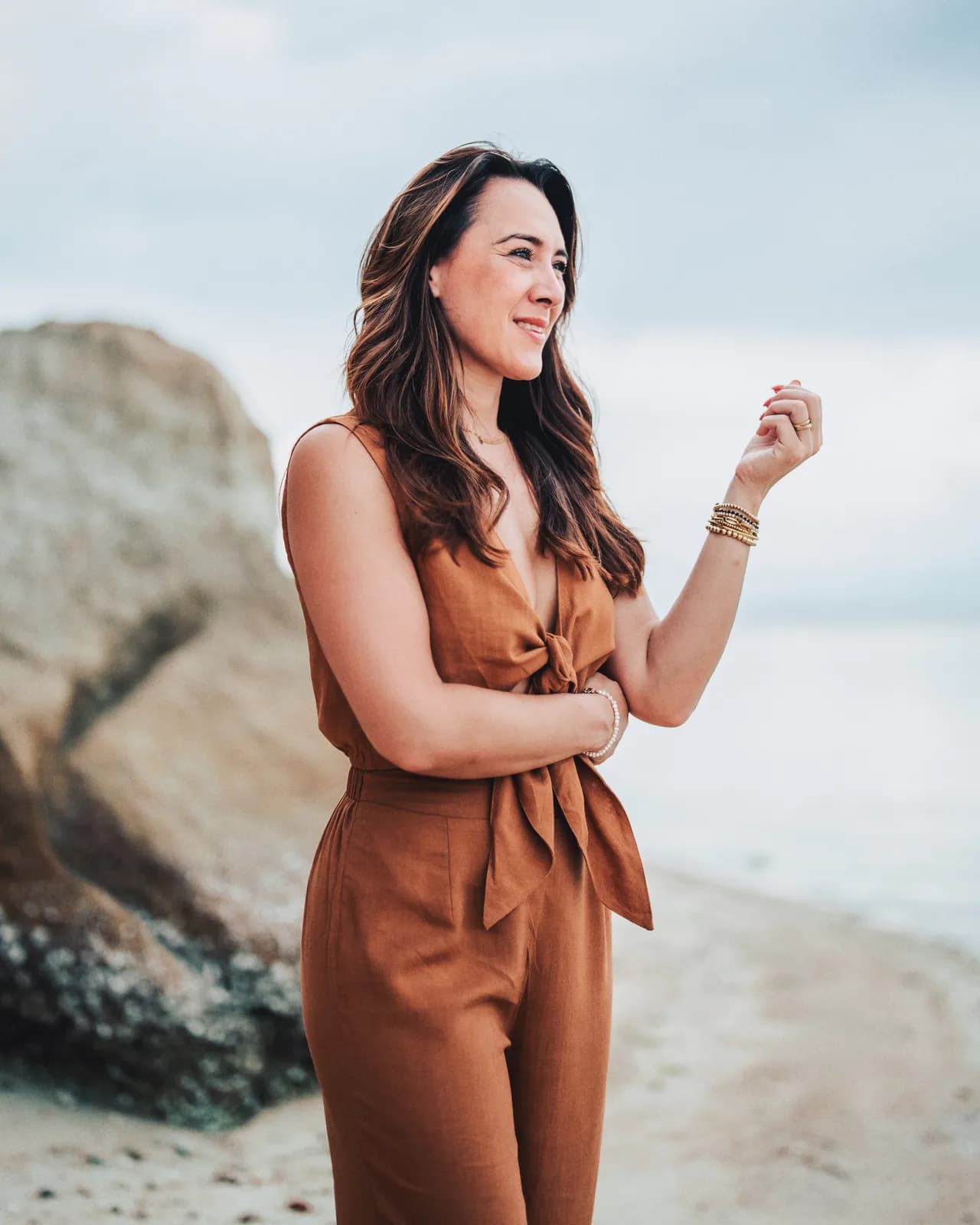
What it looks like


How it works
01 ▸
Create the gallery
Press “New gallery”, give it a title and, if you like, a client, a shoot date and a category. “Create gallery” opens its photos.
02 ▸
Add the photos
Drop them in or press “Add photos”: JPEG, PNG, WebP, HEIC, TIFF or Apple ProRAW, up to 100 MB each. Keep the tab open until they are in.
03 ▸
Choose how it looks
Under “Settings”, pick a layout, write a description and, if you like, upload a cover of your own with “Choose a cover”. Or select one photo under “Photos” and press “Set as cover”.
04 ▸
Decide who gets in
Under “Access & downloads”: public, a private link, a password or a client login, and which sizes may be downloaded. A new gallery starts as a private link with high-resolution downloads.
05 ▸
Publish and send
“Publish gallery” puts it online. The “Share” tab has the link, the QR code and the “your gallery is ready” email.
What is in it
- Five layouts: Masonry, Editorial, Grid, Story and Minimal
- Light or dark, set with your brand; your client can switch
- A cover of your own, even a design that is not in the gallery itself
- Scenes, like Getting ready, Ceremony and Party, with a menu for your client
- A description under the title, in your own words
Sharing and access
- Public, private link, password, or a client sign-in with a link by email
- Copy the link, email it, send it on WhatsApp or download it as a QR code
- A “your gallery is ready” email, with the password in it if you like
- Every address ends in random characters: nobody guesses the next event
- Hidden from search engines unless you say otherwise
Downloads
- Web size (2048 px), high resolution (4096 px) or the original files
- Every photograph, or only their own favorites or selection
- Ask for an email address or a PIN first
- One at a time, all at once or a choice of their own, and it starts straight away, without “preparing your download”
- A watermark goes on copies; the original always stays clean
Scenes and order
- Upload straight into a scene, or move photos later with “Move to…”
- Drag photos into order within a scene; the arrows move whole scenes up or down
- In a gallery that is already out, a new scene goes on top, so the newest photos come first
- Removing a scene keeps its photos
Limits per plan
- Galleries: 3 on Free, 25 on Starter, no limit from Pro. Drafts and archived galleries count; deleted ones do not
- Storage: 2 GB on Free, 50 GB on Starter, 250 GB on Pro, 1 TB on Studio, 2 TB on Agency; more by the month on a paid plan
- Passwords, your own logo and watermarks from Starter
- A second brand, with its own logo and theme, per gallery from Studio
Questions
Can I see the gallery before my client does?
Yes. “Preview” opens it as your client will see it, drafts included. Nothing you do there is saved or counted.
Can I replace a photo after the gallery is out?
Yes. Upload the new version with the same file name and choose “Replace”. It takes the old one's place, with your client's favorites and comments still on it.
Does my client have to type the password every time?
No. Once in, the gallery stays open on that phone or computer for 30 days. Change the password and everybody types the new one.
What happens on the end date?
The gallery closes at the end of that day. Three days before, you get a reminder, and so does your client if the gallery has a client with an email address. “Reactivate gallery” opens it again.
Pass it on
Send this page to whoever it is for.
A client, a colleague, a wedding planner or an agency: this link opens this page.
https://shyreo.com/features/galleries
More features
Galleries
Beautiful delivery, in your own style
Find me
Guests find themselves with a selfie
Rolls
A roll for every guest, one album together
Portrait sessions
Portraits at a fair, each person gets only their own
Video
The aftermovie, with feedback to the second
Favorites
Clients choose, you get the file names
Slideshow
The whole shoot on the big screen
On the phone
Feels like an app
Plug-ins
Lightroom, Capture One and DaVinci Resolve: what clients choose comes back
Mac app
Upload whole folders, even with the browser closed
Your brand
Your logo, colours and own address
Client brands
Deliver under your client's name
Watermarks
Your logo on the previews
Search
Find one photo in your whole archive
Client portal
One address for returning clients
Team
Several photographers and brands
Group galleries
One event, every photographer on one page
Moving in
Your whole archive in, folder by folder
Security
How your clients' photographs are protected